How to edit a PDF with Toracube
Six steps, from opening a file to saving your changes.
- 1
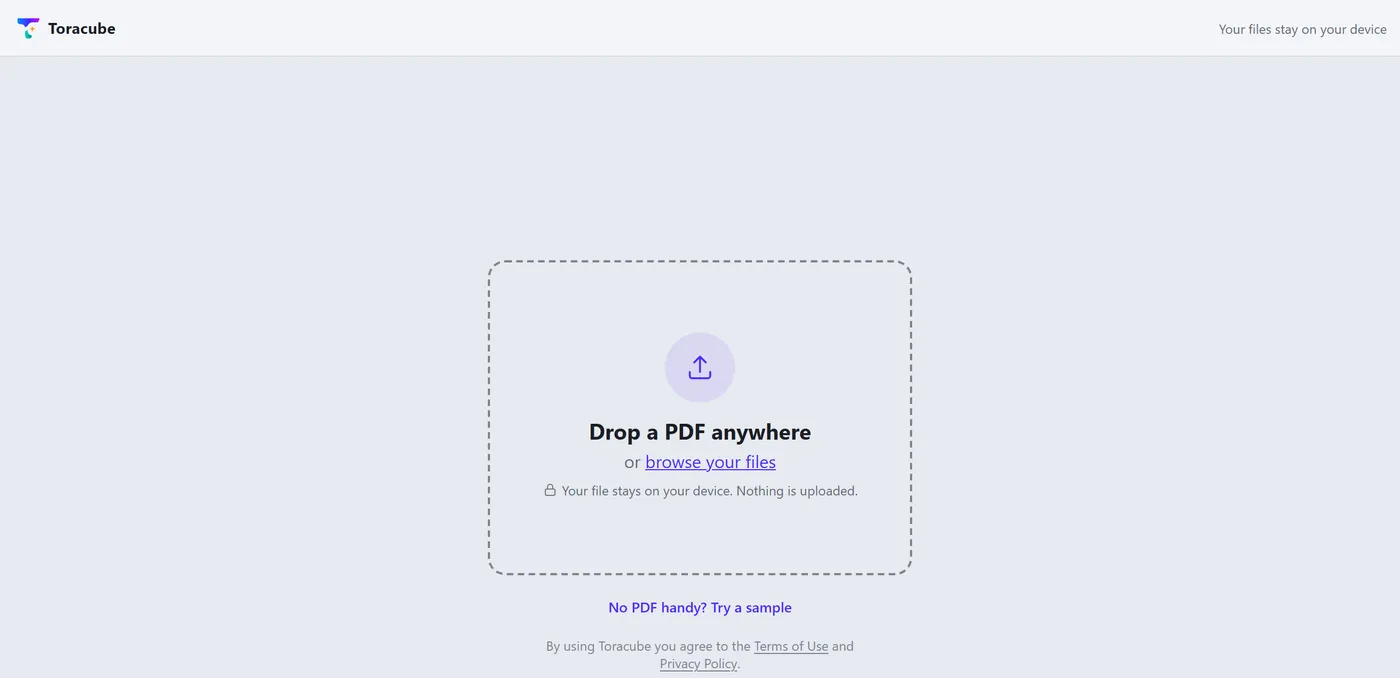
Open your PDF
Drag a PDF into the editor, or choose one from your device. Your file stays on your device and is not uploaded.

- 2
Click the text you want to change
Turn on Edit text (E), click a line or paragraph and type. Press Ctrl/⌘ + Enter or click outside the text to finish.
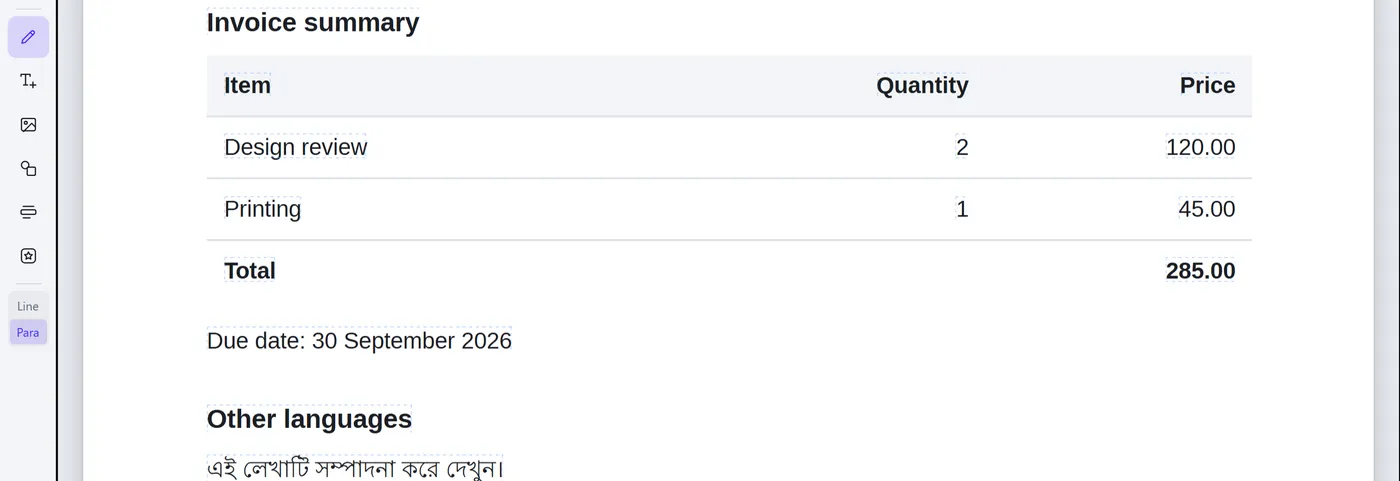
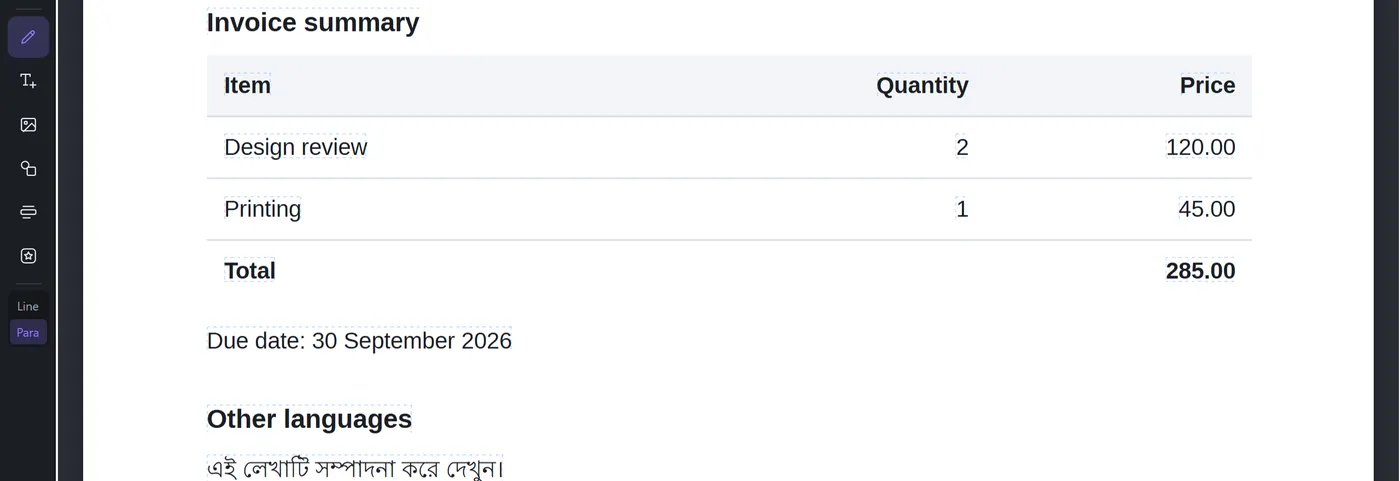
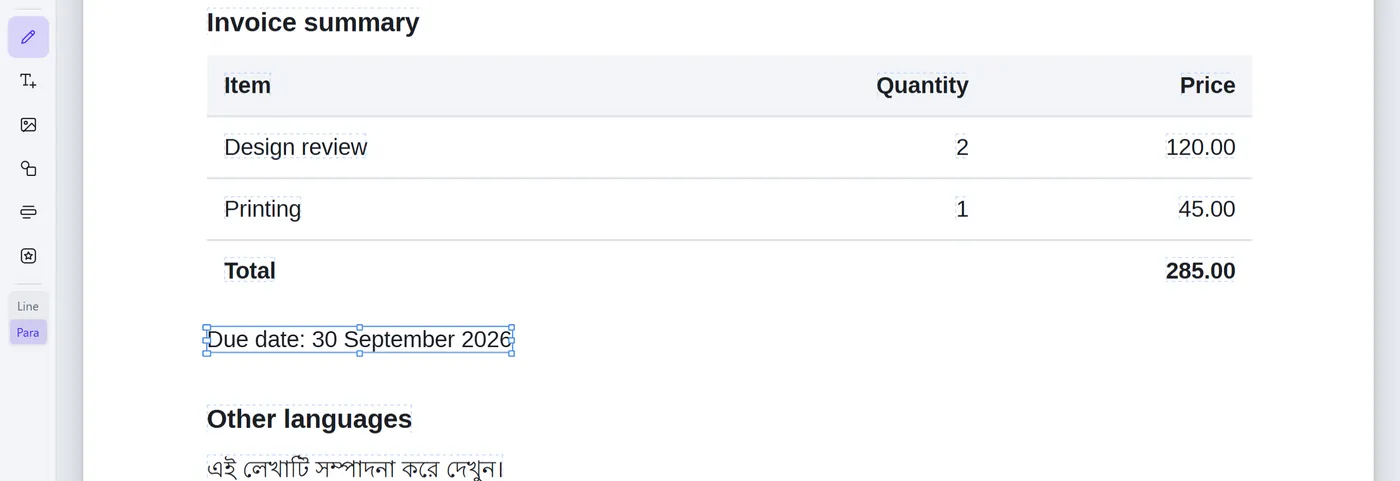
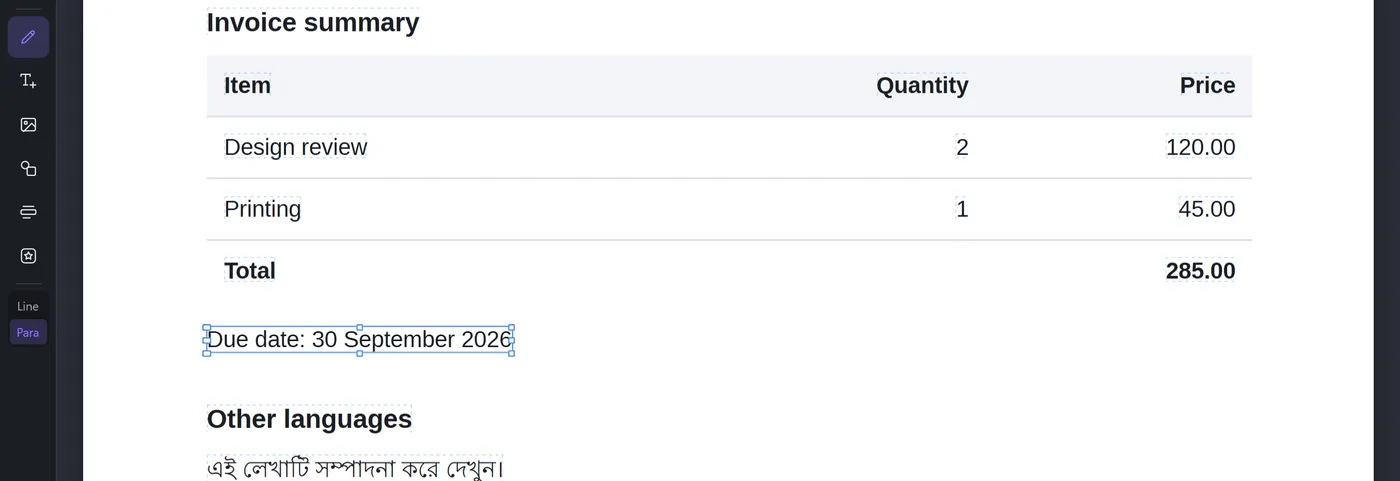
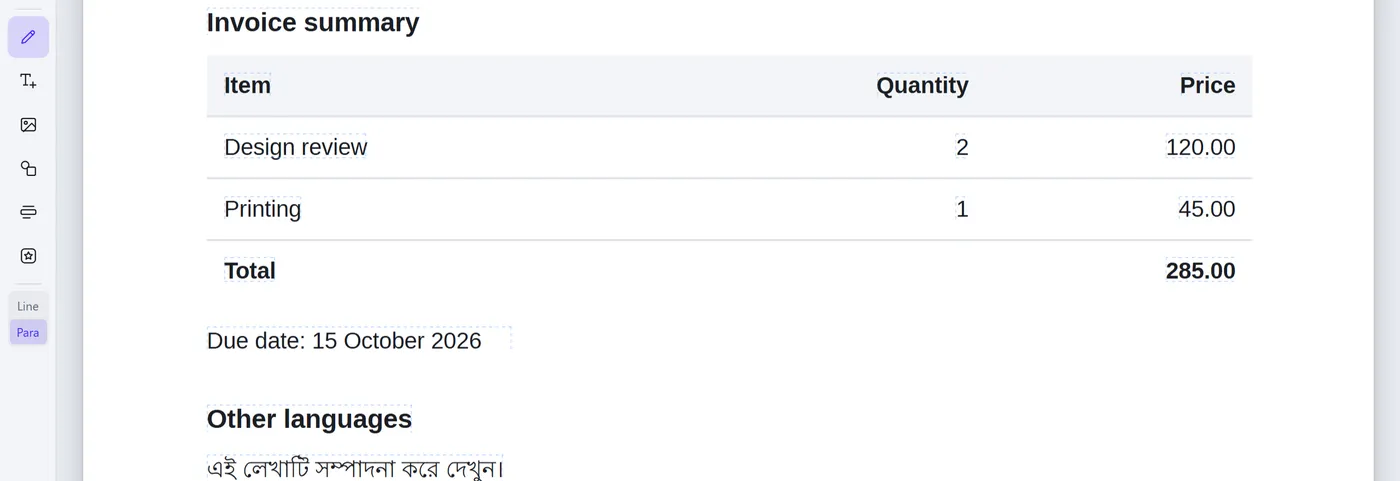
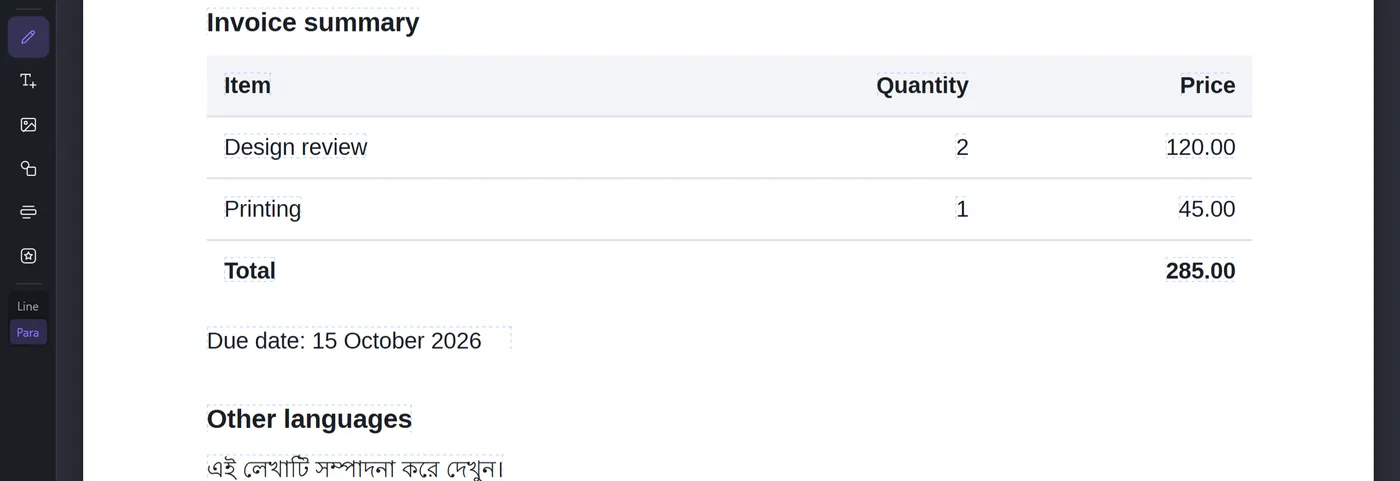
Select a line, type the new text, and click outside to finish. - 3
Change the style
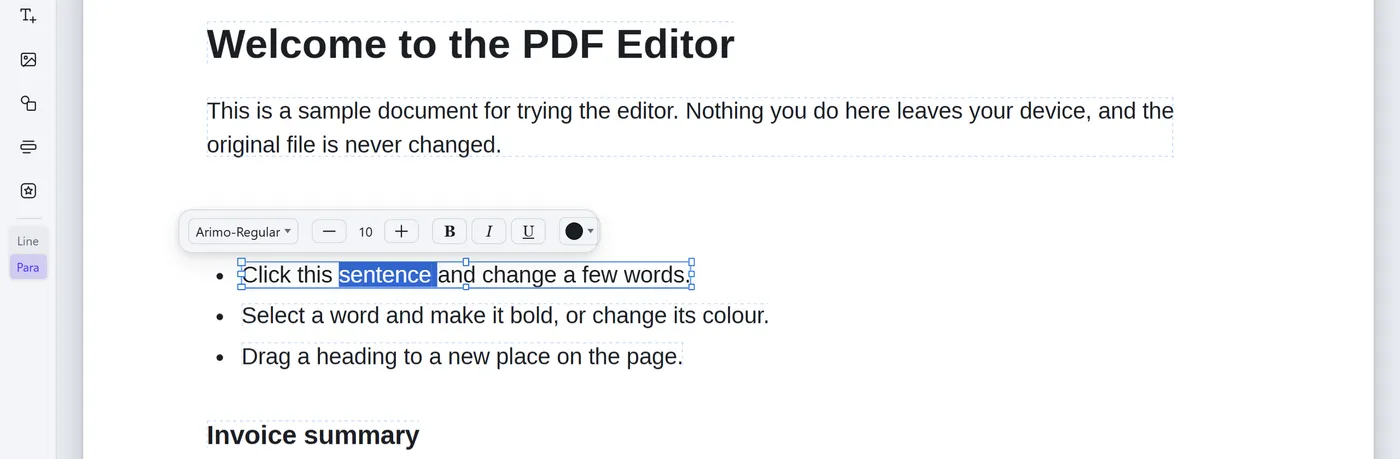
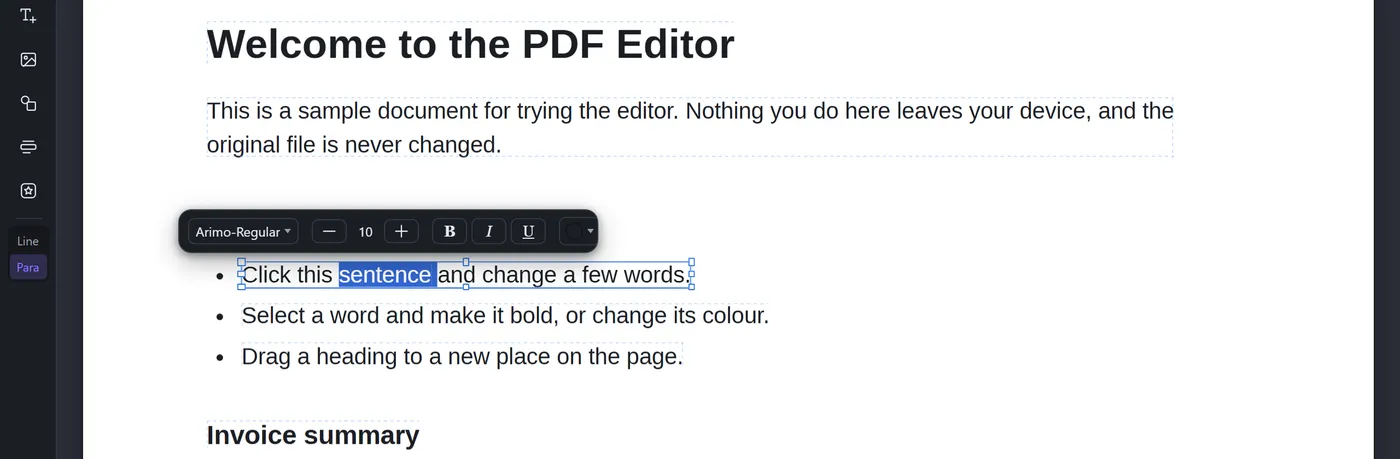
Select some words to change their font, size, bold, italic, underline or colour.
- 4
Move or resize
Drag a block to move it, or drag its handles to change its width. Press Delete to remove it.
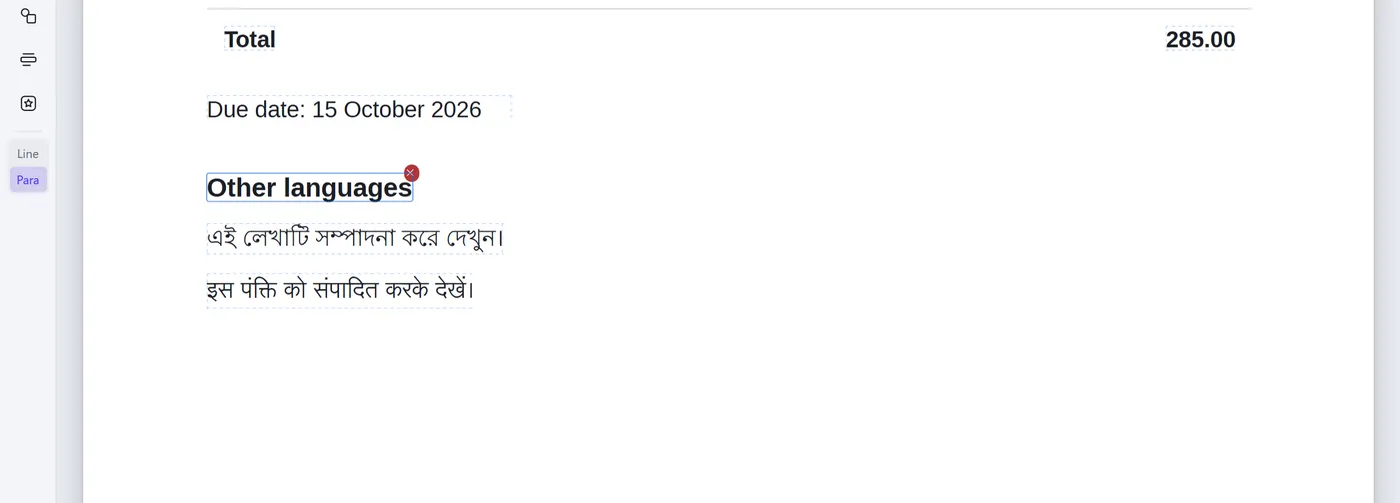
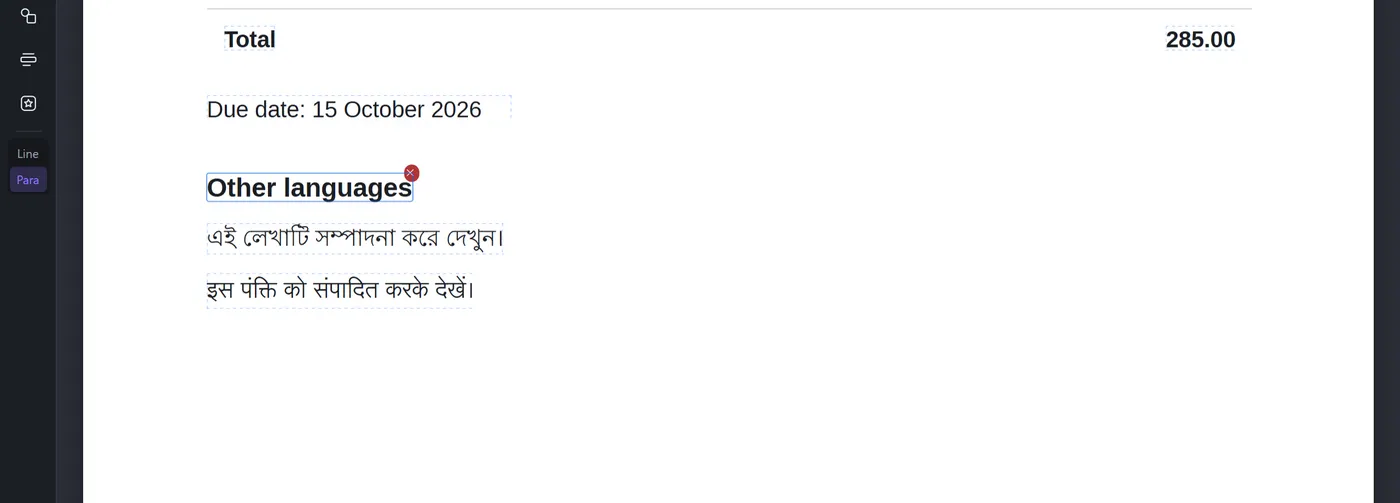
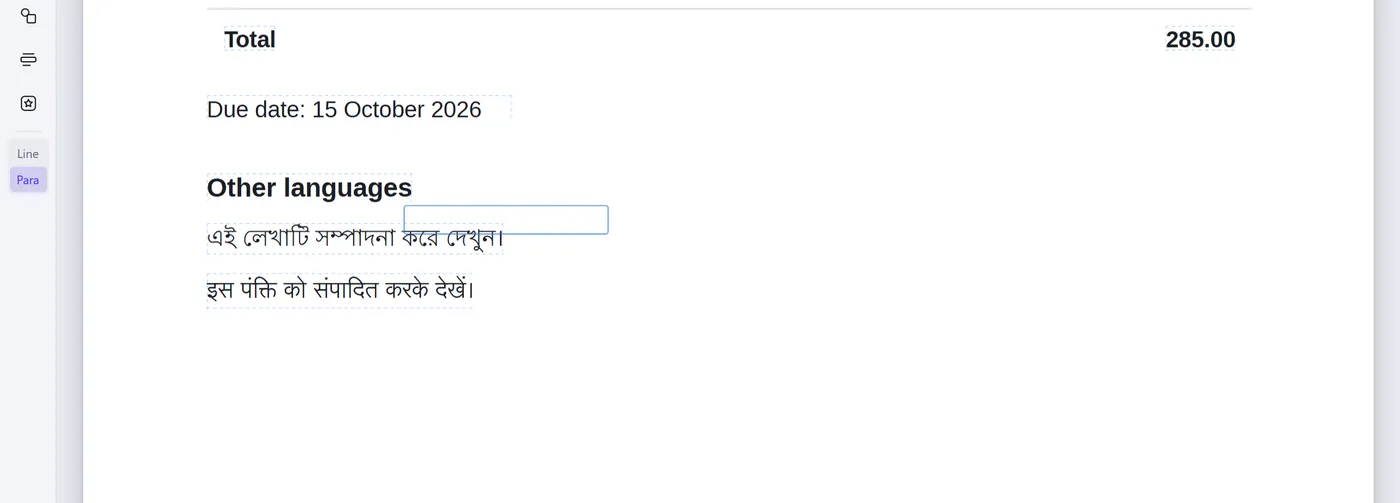
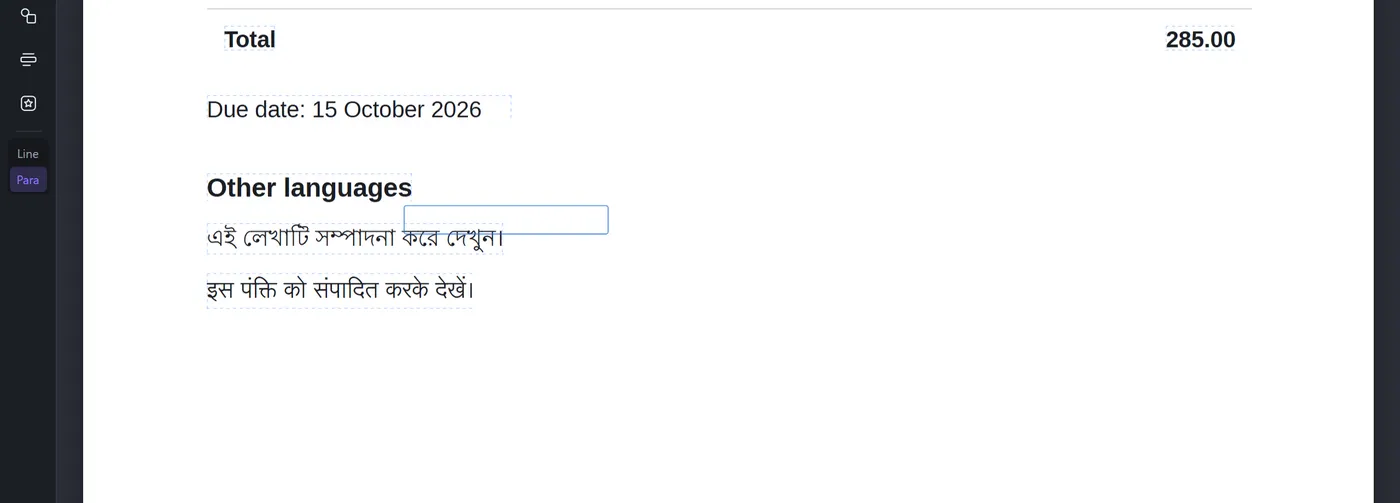
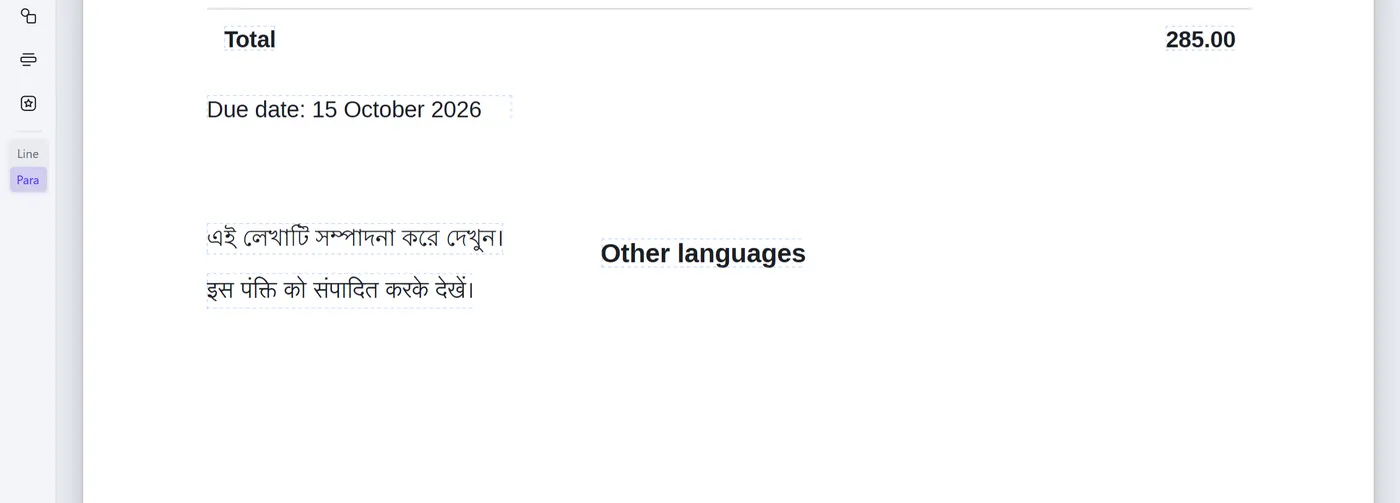
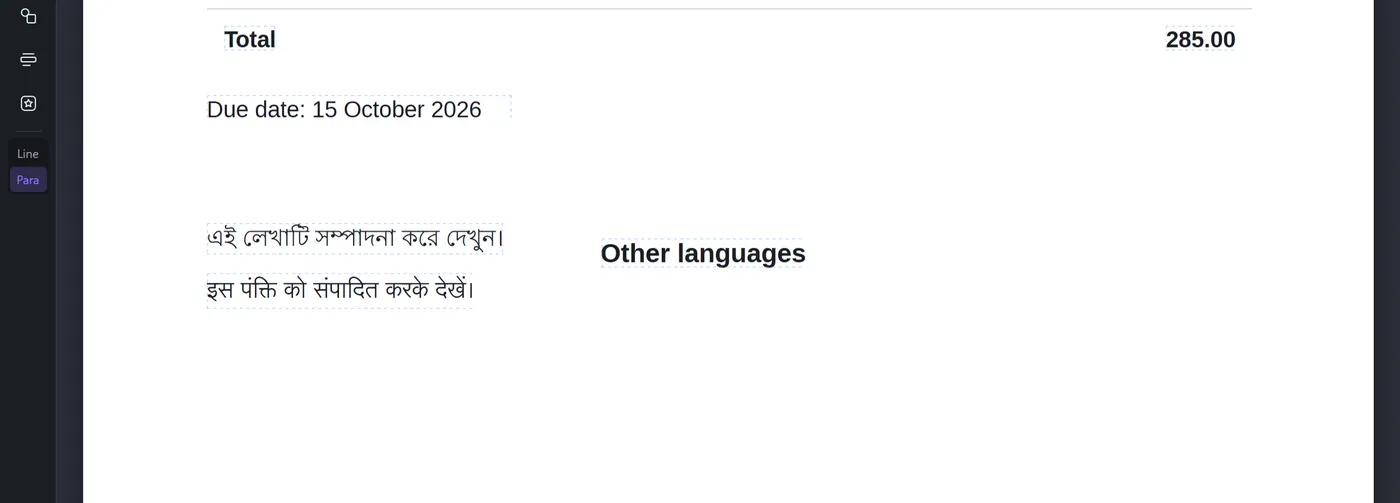
Select a block, drag it, and release it where you want it. - 5
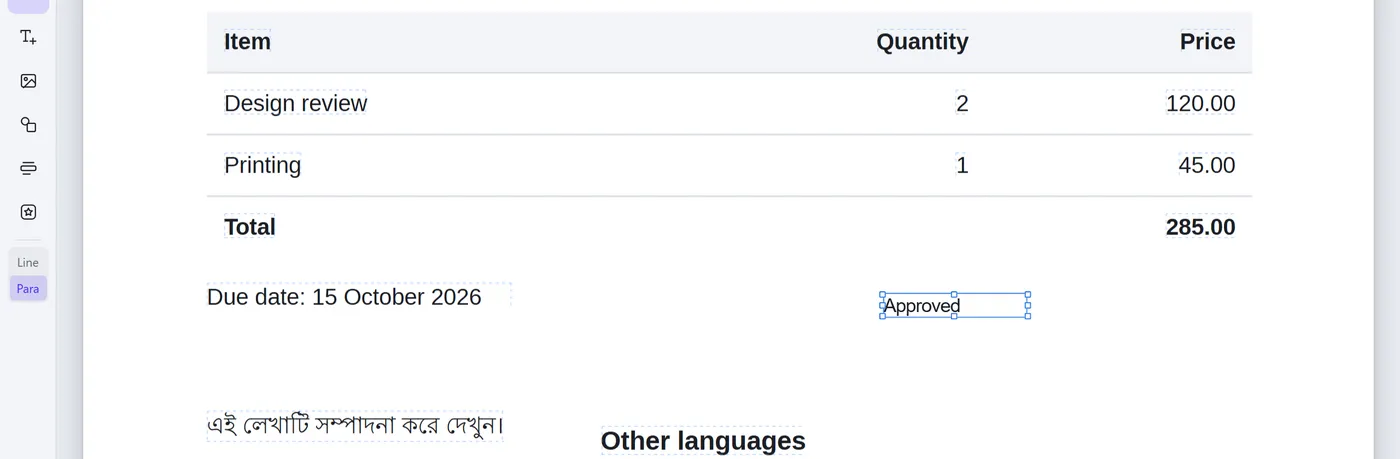
Add text, images and shapes
Use Add text (A), Add image (I) or Add shape (S) from the tool bar, then click the page.
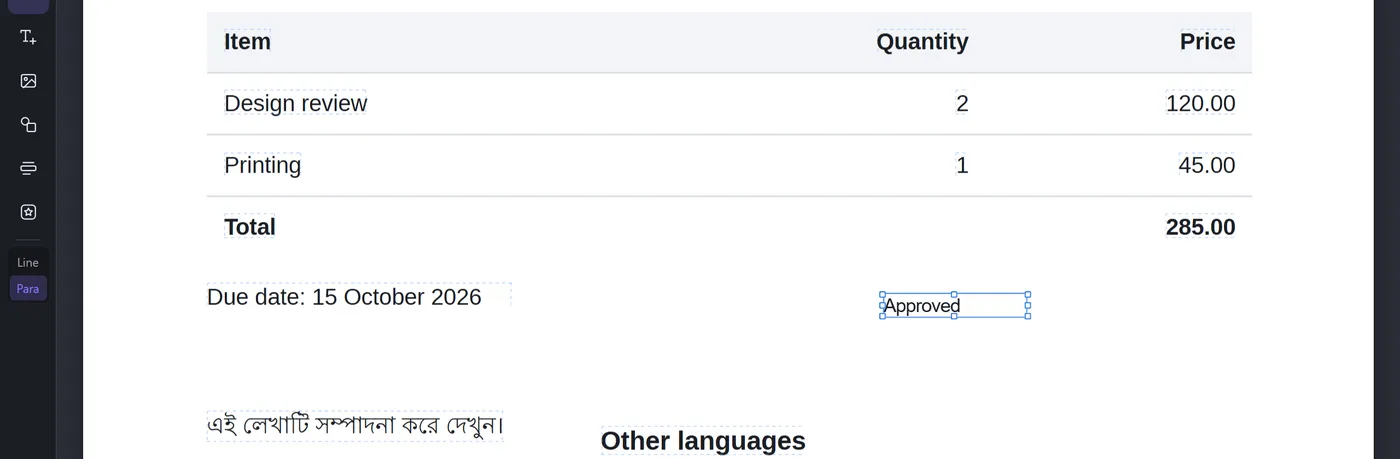
- 6
Save your PDF
Press Save (Ctrl/⌘ + S) to download the edited file. Your original file is not changed.


Keyboard shortcuts
| E | Edit text |
| A | Add text |
| I | Add image |
| S | Add shape |
| Esc | Select tool, or close what is open |
| Delete | Remove the selected block |
| Ctrl/⌘ + Z | Undo |
| Ctrl/⌘ + Y | Redo |
| Ctrl/⌘ + S | Save |
| Ctrl/⌘ + F | Find in the document |
| + − 0 | Zoom in, zoom out, actual size |
Tips
- Keep a copy of your original file.
- The editor works best with PDFs that contain selectable text.
- Editing a digitally signed PDF invalidates its signature.
- Toracube is intended for personal documents, not legal or official ones.